You can revoke access to a camera previously granted to another user or change its parameters via:
1. How to edit camera access rights via the personal account on the website
| 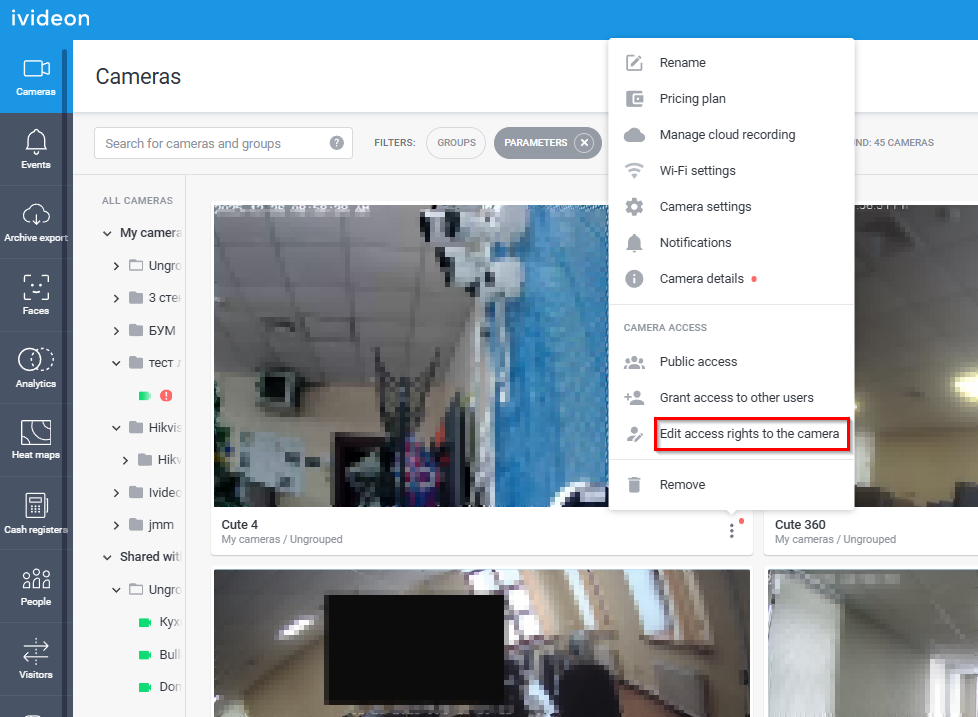 |
3. To partially modify previously granted camera access rights, click the pencil icon. Check or uncheck the boxes next to the desired options and then click Save. 4. To completely revoke previously granted camera access rights, click the cross (X) icon to the right of the required account's email in the list and confirm the rights revocation. | 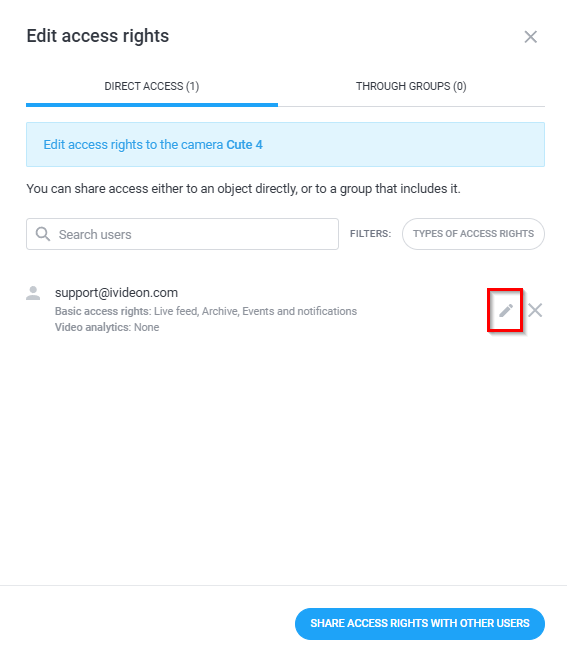 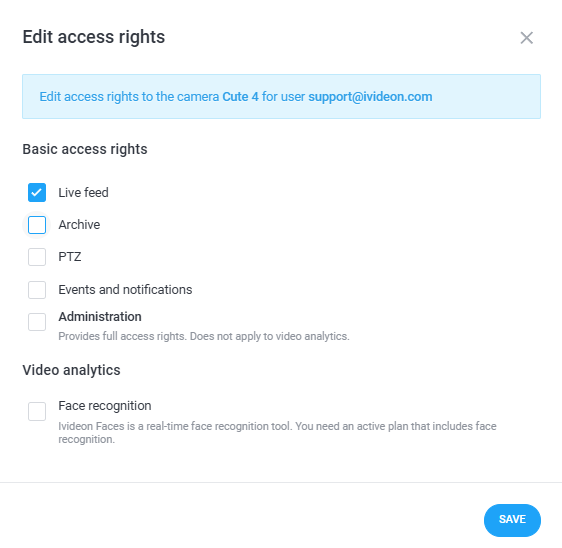 |
2. How to edit camera access rights via the Ivideon Client for PC
1. Click the settings button (three dots) under the camera preview and select Share rights from the drop-down menu. | 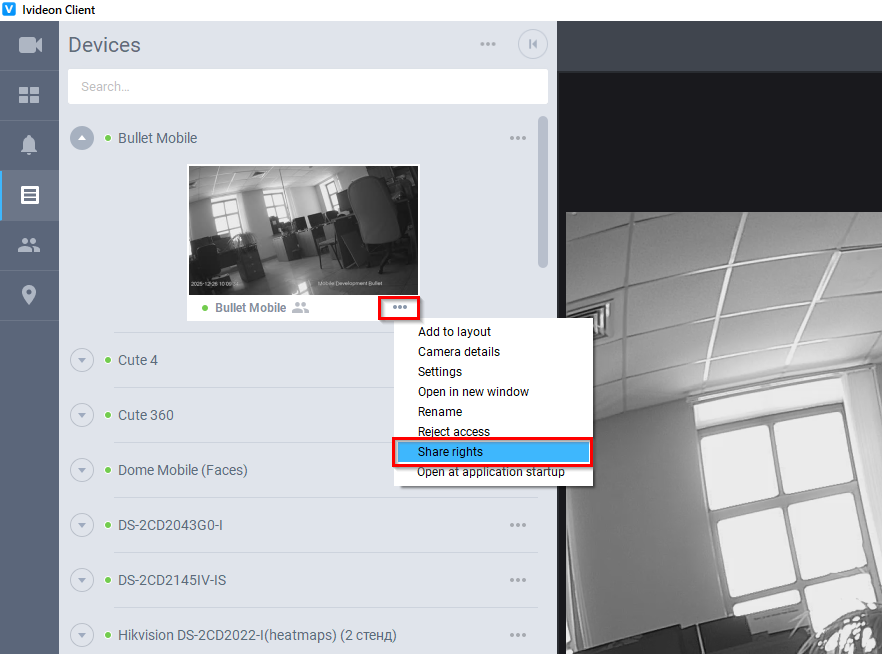 |
2. To partially modify previously granted camera access rights, check or uncheck the boxes next to the desired options — the settings will be saved automatically. 3. To completely revoke previously granted camera access rights, click the cross (X) icon to the right of the required account's email in the list and confirm the rights revocation. | 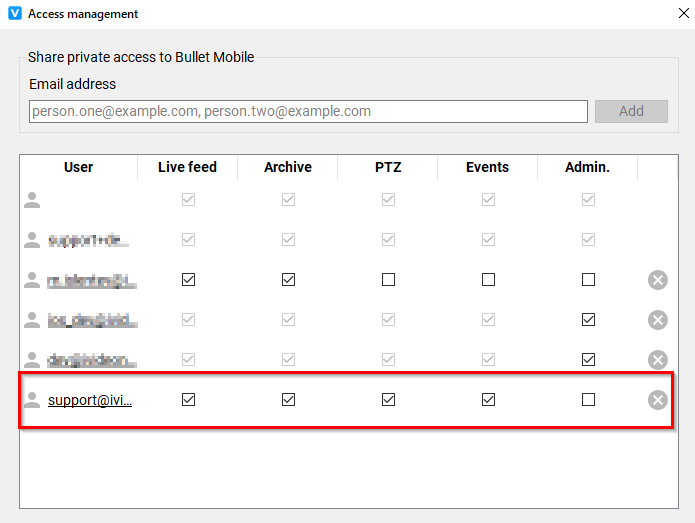 |
3. How to edit camera access rights via the Ivideon Mobile App
1. Launch the app and open the Cameras tab. 2. Tap the settings button (three dots) next to the camera name in the list and select Camera settings. | 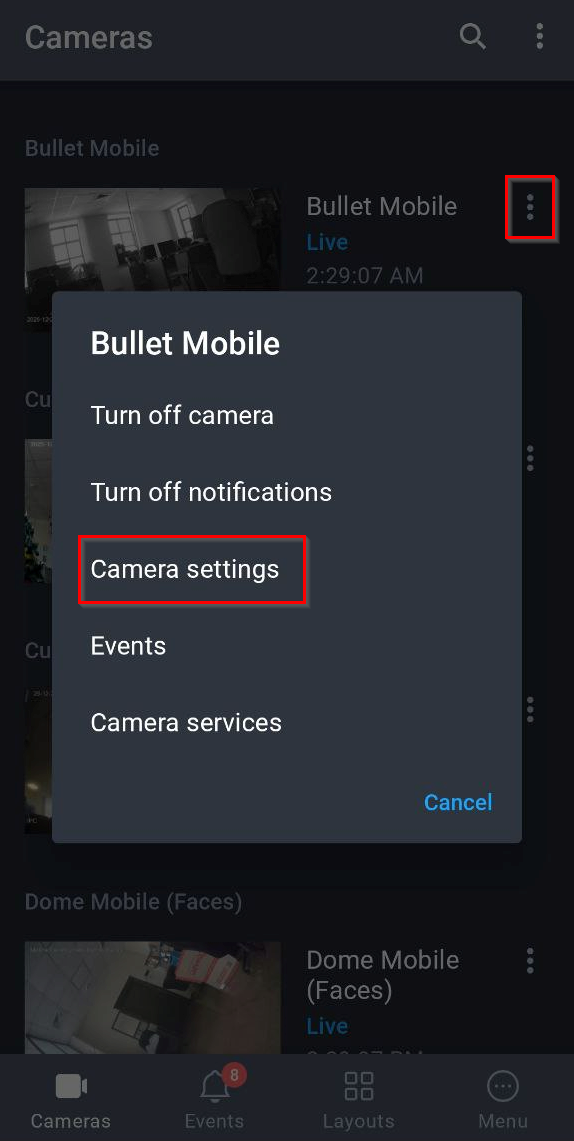 |
3. Scroll through the settings section to the General subsection and select Grant access. | 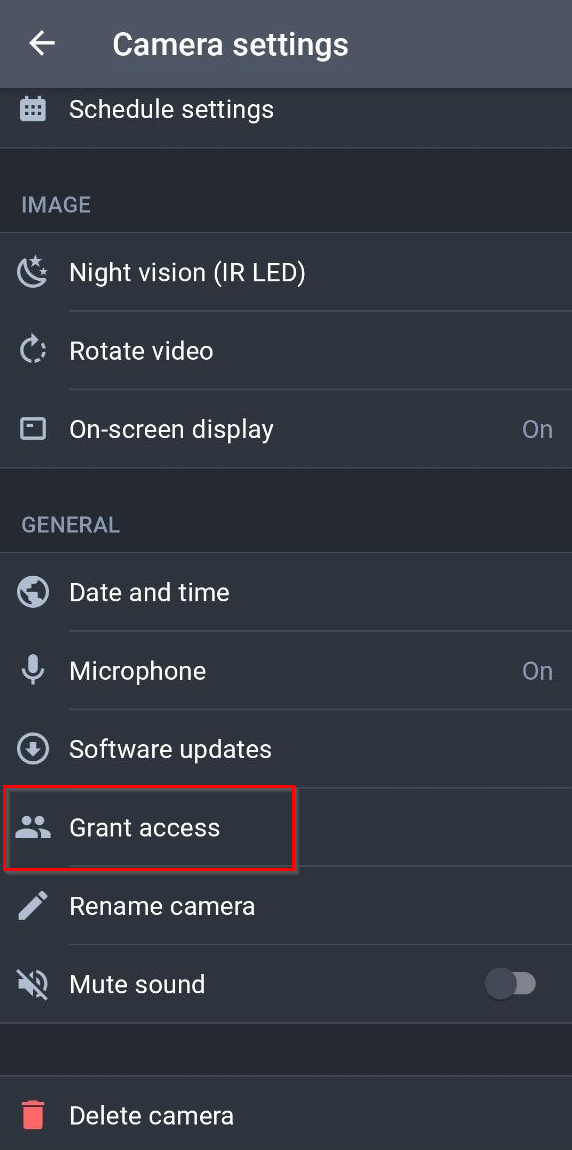 |
4. Select from the list the user whose access rights need to be revoked or modified. | 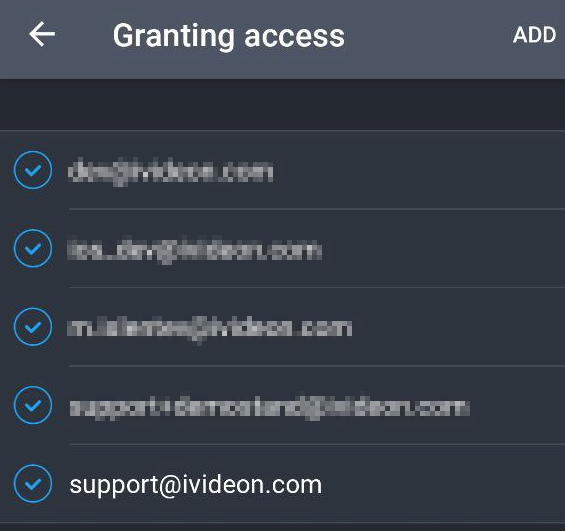 |
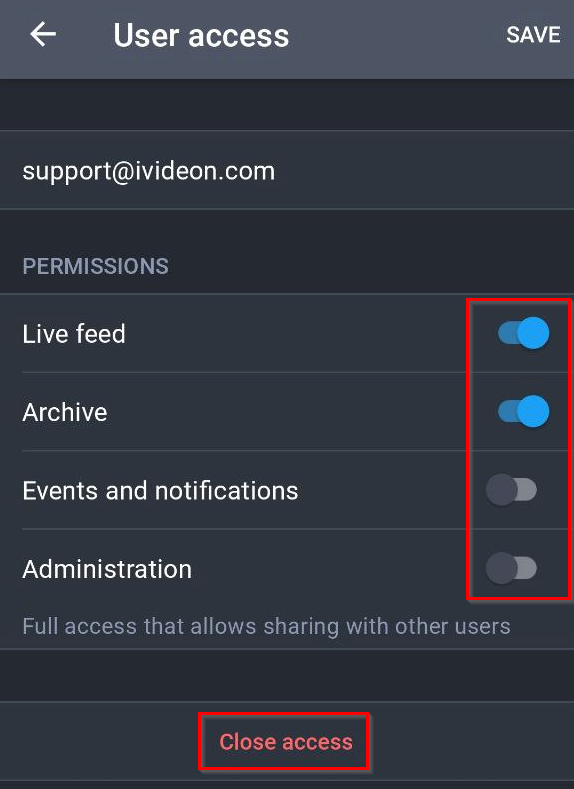
5. To partially modify previously granted camera access rights, enable or disable the desired options and then tap Save. 6. To completely revoke previously granted camera access rights, tap Close access and confirm the rights revocation. |
 |