
You can share access to a camera with another user via:
1. How to share camera access via the personal account on the website
1. Open your personal account and go to the Cameras section. 2. Click the settings button (three dots) under the camera preview and select Grant access to other users from the drop-down menu. |
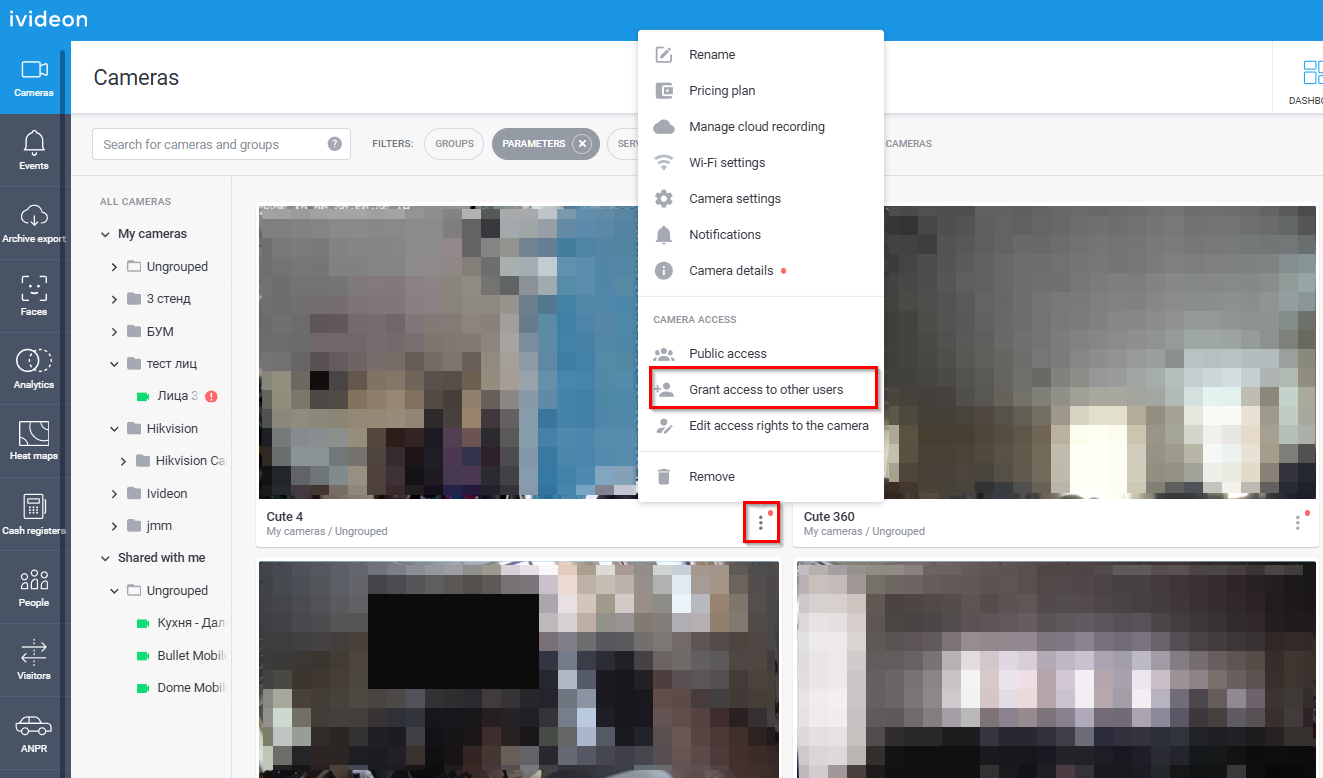
|
3. Select the options you want to grant access to and click Continue.
|
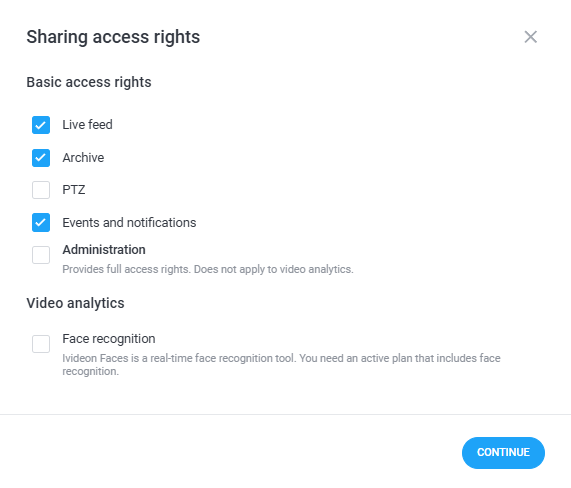
|
4. Enter the email address of the user you want to share access with. If there are several users, enter their email addresses separated by commas. Then click Share access rights and Done. |
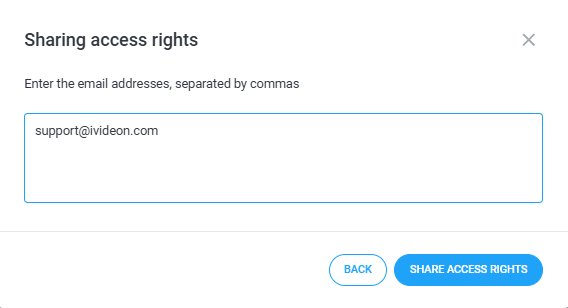
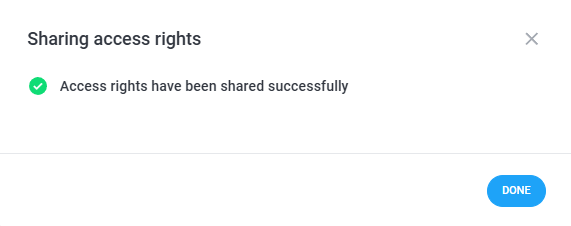
|
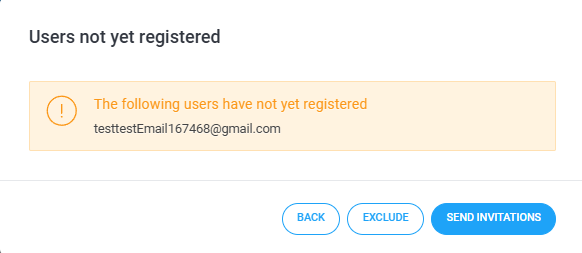
Please note! If the user you are trying to share rights with is not yet registered in the system, you will be prompted to send them an invitation. You can read more about how the invitation function works in this article. |
|
2. How to share camera access via the Ivideon Client for PC
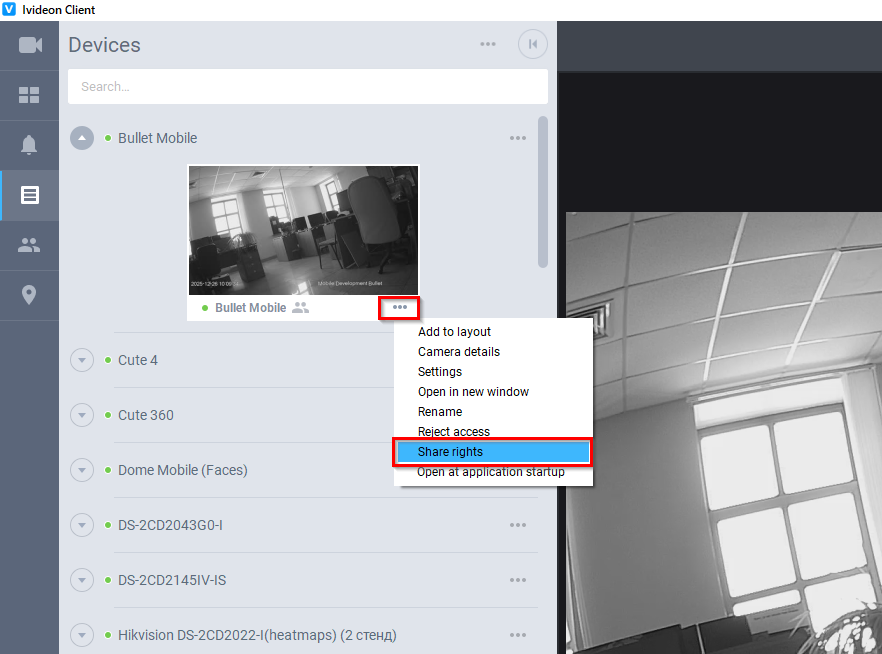
1. Click the settings button (three dots) under the camera preview and select Share rights from the drop-down menu.
|
|
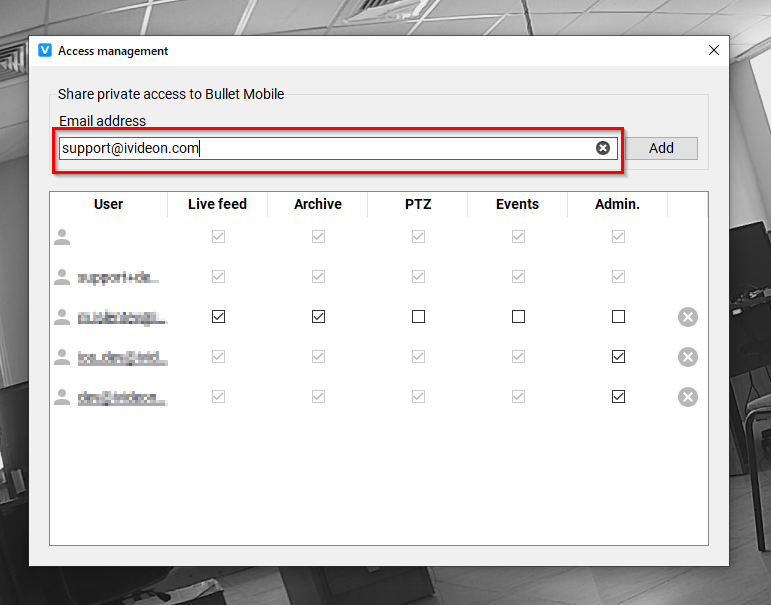
2. In the upper part of the window, enter the email address of the user you want to share access with. If there are several users, enter their email addresses separated by commas. Then click Add. |
|
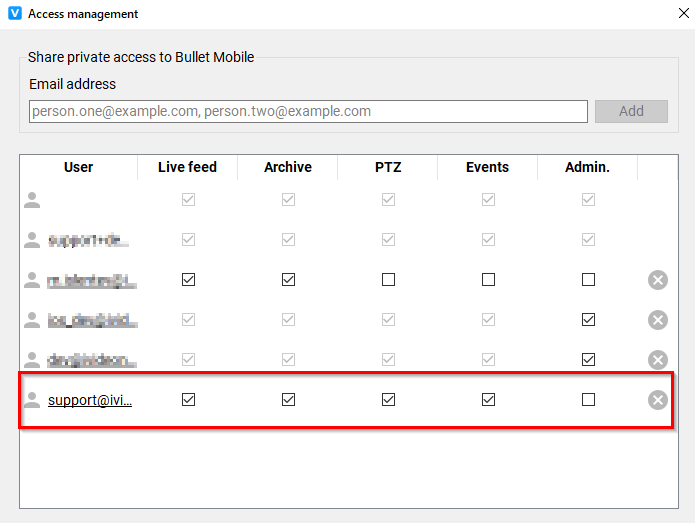
3. In the lower part of the window, check the boxes for the options you want to grant access to. Then close the window — the settings will be saved automatically. |
|
3. How to share camera access via the Ivideon mobile app
1. Launch the app and open the Cameras tab. 2. Tap the settings button (three dots) next to the camera name in the list and select Camera settings. |
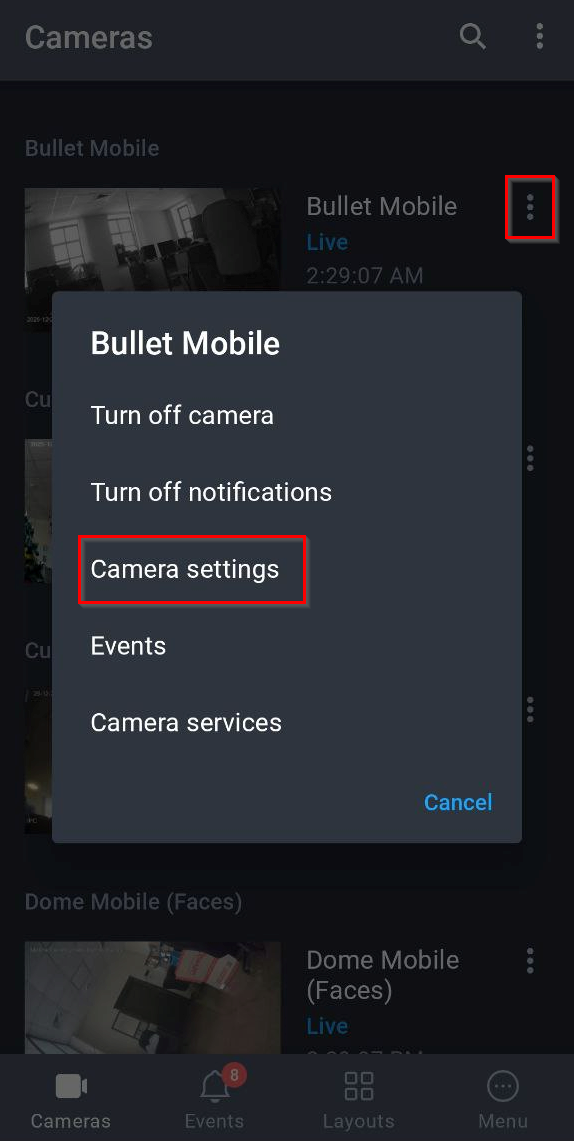
|
3. Scroll through the settings section to the General subsection and select Grant access |
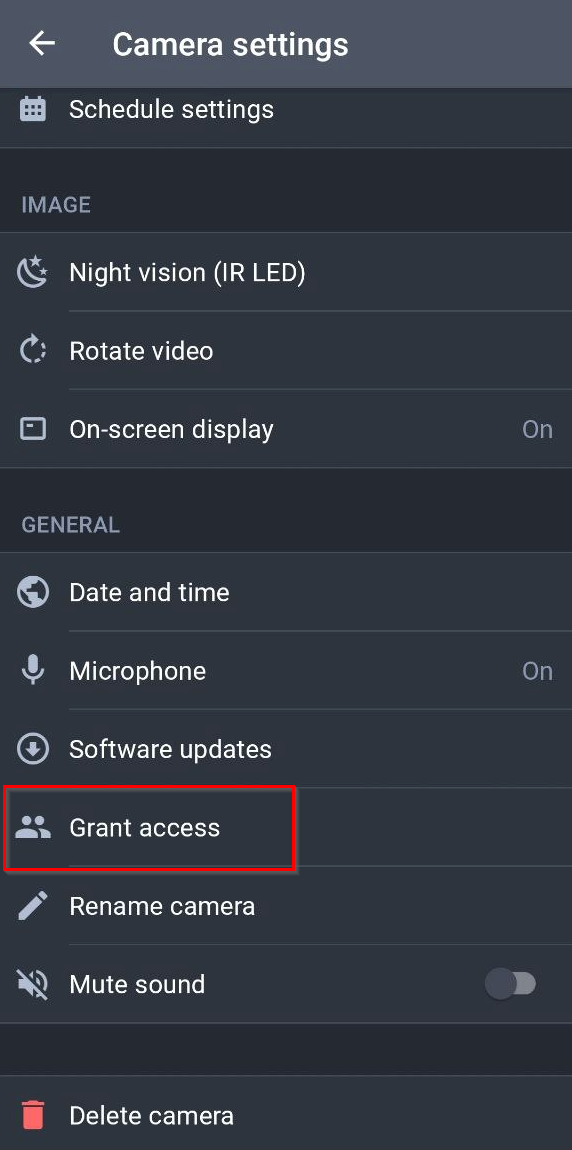
|
4. Tap the Add button |
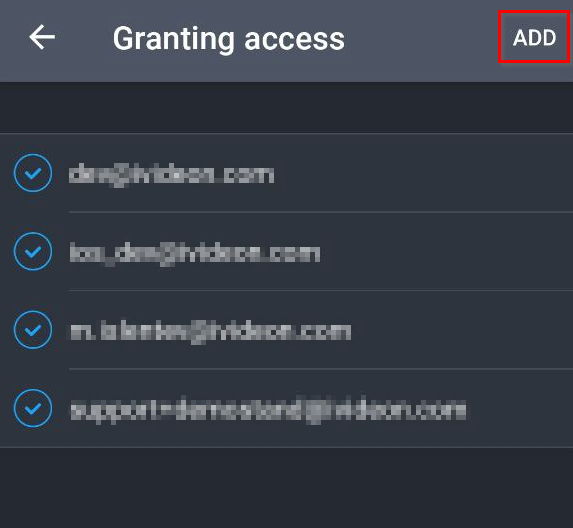
|
5. Enter the email address of the user you want to share access with.
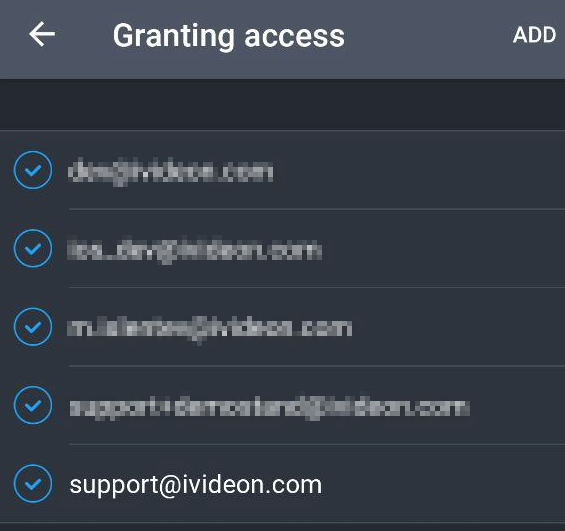
Please note! When sharing rights via the mobile app, the email must be entered in lowercase letters only, e.g., support@ivideon.com, not Support@ivideon.com — otherwise, the system will not be able to recognize it correctly and the rights sharing will fail. 6. Select the options you want to grant access to and tap Add user — they will appear in the Granting access list.
|
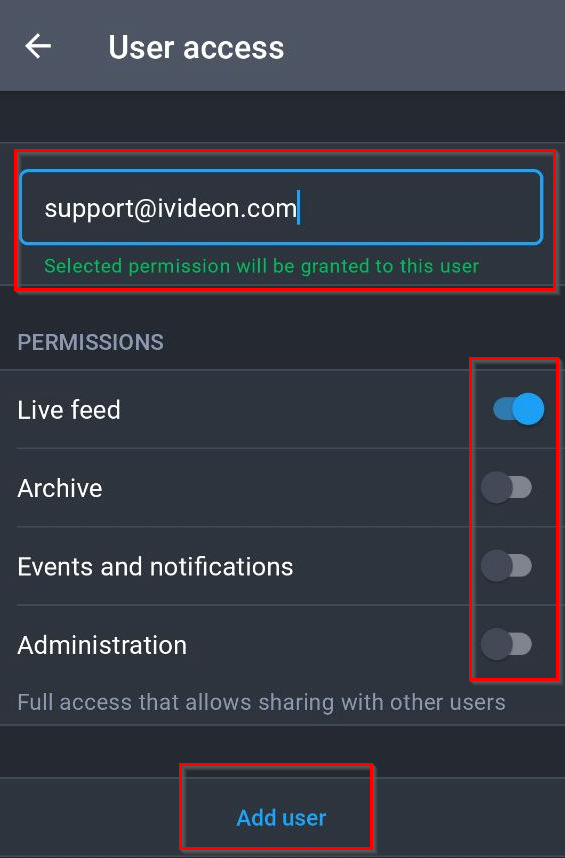
|